First run
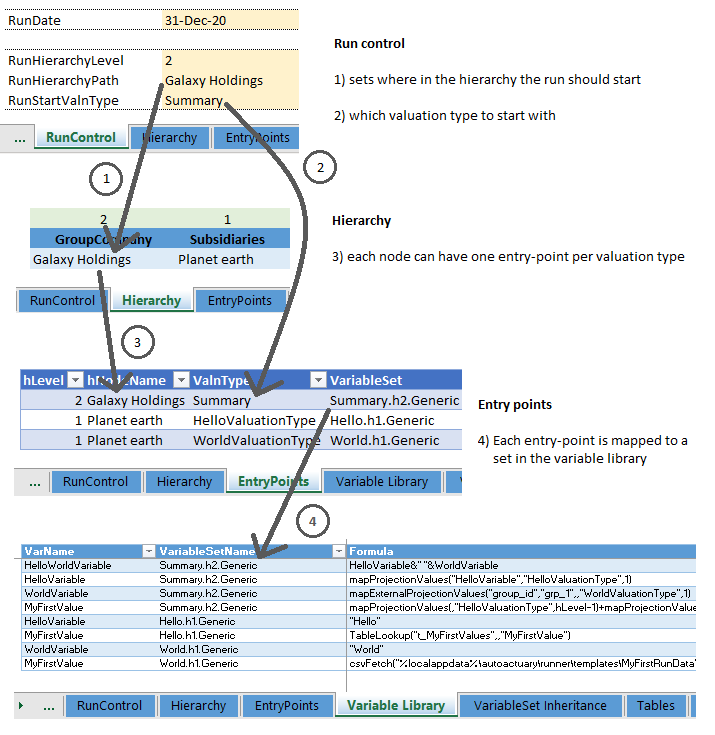
In this tutorial, you will download an Autory configuration file, perform your first run, and look at the results.
-
Download this example Autory model and open it in Excel. Depending on your Windows settings, you might have to unblock the file.
-
Look at the
Hierarchysheet. This model has a simple hierarchy tree, with only two hierarchy nodes: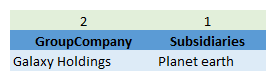
Read more about hierarchies here.
-
Look at the
EntryPointssheet.
This table defines which variable sets will be used for each combination of hierarchy node and valuation type.
- The
Hello.h1.Genericvariable set is used for thePlanet Earthnode when theHelloValuationTypevaluation type is selected. - The
World.h1.Genericvariable set is used for thePlanet Earthnode when theWorldValuationTypevaluation type is selected. - The
Summary.h2.Genericvariable set is used for theGalaxy Holdingsnode when theSummaryvaluation type is selected.
- The
-
Look at the
Variable Librarysheet.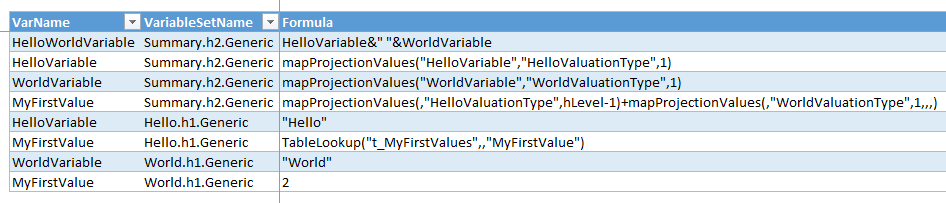
This table defines the variables and variable sets that will be used in the calculations. - The
Hello.h1.Genericvariable set contains two variables,HelloVariableandMyFirstValue. - TheWorld.h1.Genericvariable set contains two variables,WorldVariableandMyFirstValue. - TheSummary.h2.Genericvariable set contains four variables. - ThemapProjectionValuesfunction creates new precedent projection nodes and reads their results. Read more about mapping data between projection nodes here. - TheTableLookupfunction reads specific cells from a table. Read more about table lookups here. -
Look at the
RunControlsheet.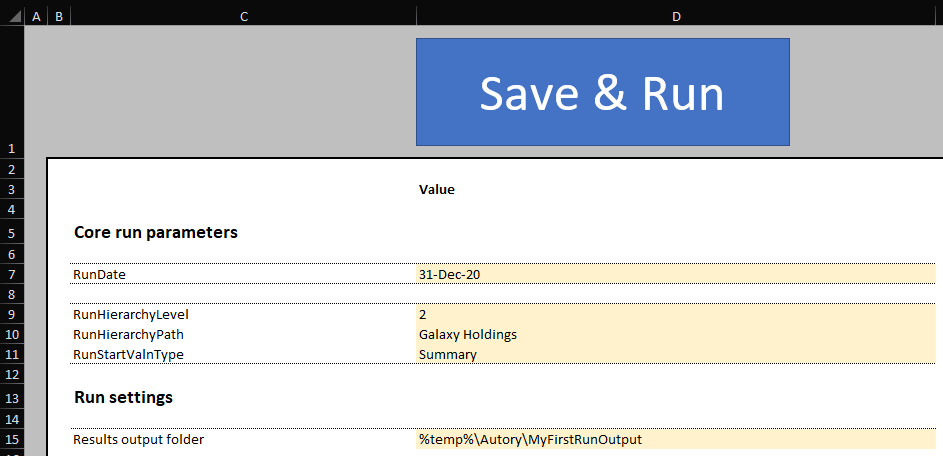
- The
RunHierarchyLevelandRunHierarchyPathdetermine which hierarchy node on the hierarchy tree will be the starting point for the run. In this case, we have selected theGalaxy Holdingsnode. - The
RunStartValnTypedetermines which valuation type will be the starting point for the run. In this case, we have selected theSummaryvaluation type. - Therefore, the projection node tree for this run will look like this:
- Projection node 1 …
- is the initial projection node as selected on the
RunControlsheet. - uses the
Summary.h2.Genericvariable set. - reads the value of
HelloVariablefrom projection node 2 into its ownHelloVariablevariable. - reads the value of
WorldVariablefrom projection node 3 into its ownWorldVariablevariable. - concatenates the
HelloVariableandWorldVariablevariables into theHelloWorldVariablevariable. - reads the values of
MyFirstValuefrom projection nodes 2 and 3 and sums them into its ownMyFirstValuevariable.
- is the initial projection node as selected on the
- Projection node 2 …
- is a precedent created by the
HelloVariablevariable from theSummary.h2.Genericvariable set. - uses the
Hello.h1.Genericvariable set. - contains the string
"Hello"in theHelloVariablevariable. - looks up the value
1from tablet_MyFirstValuesand stores it in theMyFirstValuevariable.
- is a precedent created by the
- Projection node 3 …
- is a precedent created by the
WorldVariablevariable from theSummary.h2.Genericvariable set. - uses the
World.h1.Genericvariable set. - contains the string
"World"in theWorldVariablevariable. - looks up the value
2from tablet_MyFirstValuesand stores it in theMyFirstValuevariable.
- is a precedent created by the
- Projection node 1 …
- The
-
In the Autory Excel ribbon, click Save & run.
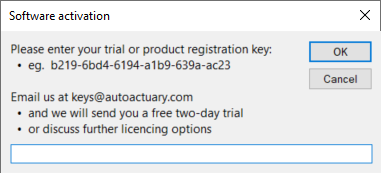
- If this is the first time starting a run, you will be prompted to enter a license key.
- If you need to stop the run before it finishes, see how to stop a run.
- If this is the first time starting a run, you will be prompted to enter a license key.
-
In the
RunControlsheet, look for theResults output foldersetting. This is where the results will be saved. Open that folder (CTRL+C,Win+R,CTRL+V,ENTER).
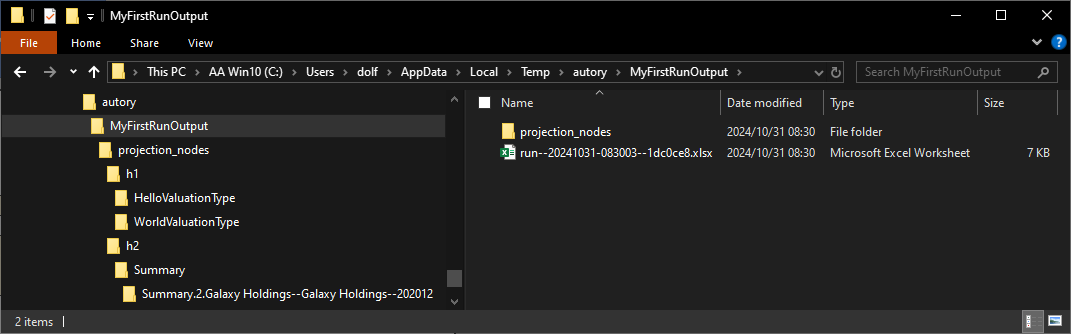
- Open the file with a name like
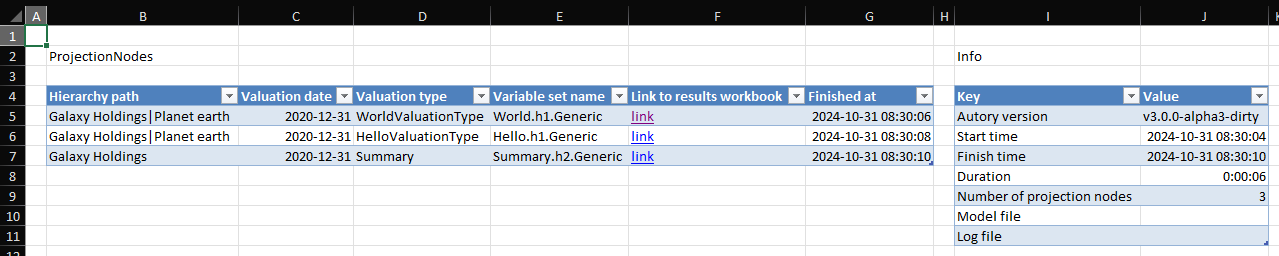
run--YYYYMMDD-HHMMSS--asdf.xlsx. This is the summary of the run. Every time you use Save & run, a new file like this is created.
-
In the
Link to results workbookcolumn, click on the link in the third row. This will open the workbook containing the calculation results for theSummary.h2.Genericvariable set. -
Look at the
pn_asheet.
Here you will see the results of the calculations for projection node 1 as described above.
-
Look at the
MappedVariablessheet. Here you will see the results from other projection nodes that were copied into this projection node. Click on any of the "Source" links above these tables to jump to the precedent projection node's workbook. -
To recap: