How to patch a model workbook after upgrading Autory
Why patch a workbook?
Patching an Autory model workbook is necessary when new features are added to Autory that require updates in the model workbook. It updates the VBA code, tables, named ranges, etc. in the model workbook to ensure compatibility with the latest version of Autory. Note that this makes your model files incompatible with older versions of Autory, so if you still need to run your model on an older Autory, you may choose not to patch it yet. New features might not be accessible until the optional patches have been applied.
When to patch a workbook
This is typically done directly after installing a newer version of Autory. For major upgrades (e.g., from 3 to 4), patches may be required. For minor upgrades (e.g., from 3.1 to 3.2 or from 3.1.0 to 3.1.1), patches are optional. Not every upgrade contains workbook patches. For more information about Autory upgrades, see the upgrade guide.
Forward compatibility is not guaranteed
Autory logs a warning when it encounters a model workbook that was already patched by a newer version of Autory. This warning does not necessarily prevent the model from running, because a patch might only affect a specific feature. However, forward compatibility (i.e. using older versions of Autory with newer model workbooks) is not guaranteed, so the run might fail or produce incorrect results if the older Autory does not understand the workbook changes.
Therefore, if you need to share a model workbook with someone who still uses an older version of Autory, you might want to postpone the patches, or ask the other person to also upgrade their version of Autory.
Steps
-
Open the folder where your model workbook is saved.
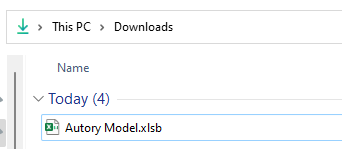
-
Open a terminal.
-
Type
autory patch "Autory Model.xlsm"(use the name of your actual file) and hitEnter.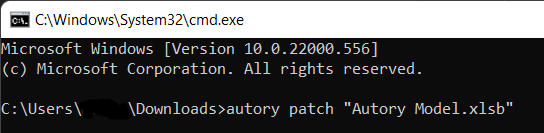
During the patch, a backup is made in the same folder adding a timestamp + '.original' postfix to the original file. The
Autory Model.xlsmfile is now patched and should be compatible with the installed Autory engine.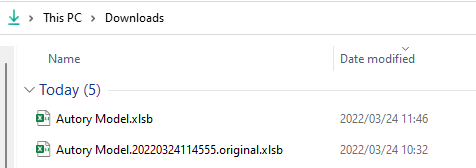
VBA object model access
At the time of writing, most Autory model workbooks contain some VBA code
(to make various buttons and dropdown lists function properly in the workbook).
The autory patch command updates this VBA code to be compatible with the installed Autory version.
To do this, it requires the "Trust access to the VBA project object model" setting in Excel to be enabled.
The autory patch command will attempt to enable this setting automatically.
If it fails, you can enable it manually by following these steps in Excel:
- Click File
- Click Options
- Click Trust Center
- Click Trust Center Settings...
- Click Macro Settings
- Tick "Trust access to the VBA project object model"
- Click OK