How to use the Autory Excel ribbon
Autory 3 installs an Autory tab in the Excel ribbon. Use this tab to run models, maintain workbook tables, etc.
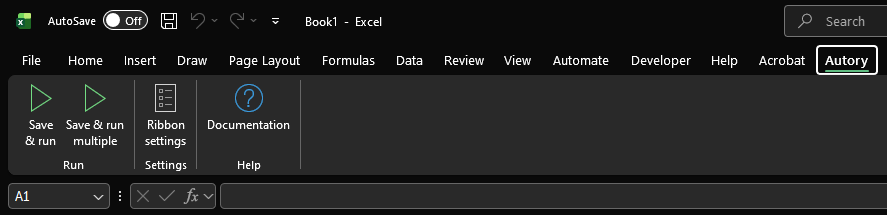
Start one model run
- Open the Autory model workbook in Excel.
- Select the Autory tab in the Excel ribbon.
- Click Save & run.
Autory saves the active workbook and starts the run in a terminal window.
This is the Excel ribbon equivalent of running autory run direct.
Start RunMultiple runs
- Open the workbook that contains the
RunMultipleRunsandRunMultipleOptionstables. - Select the Autory tab in the Excel ribbon.
- Click Save & run multiple.
Autory saves the active workbook and starts the RunMultiple batch in a terminal window.
This is the Excel ribbon equivalent of running autory run multiple.
Stop a run
Runs started from the ribbon run in the terminal window opened by Autory. To stop one cleanly, see how to stop a run.
Choose run starting point
Click Choose run starting point to fill in RunHierarchyLevel and RunHierarchyPath from the selected hierarchy node.
Autory prompts you to select a cell if needed.
Rebuild caches
Click Rebuild caches after adding, renaming, or removing model tables such as userVarLib1.
This button rebuilds lists of variable sets, valuation types, etc. on hidden sheets.
These lists are used to make dropdown lists throughout the model workbooks.
Changes to values and rows within existing tables update the dropdown lists automatically when Excel recalculates.
This supersedes the Update drop-down lists hyperlinks found in older model workbooks.
Entry points
The Entry points group contains actions for all tables named *HierarchyEntryPoints* (matched case-insensitively).
Sort
Sort clears the tables' filters and sorts complete rows by Level descending, Path ascending, Name ascending,
and then ValnType in the order in which valuation types are defined.
This supersedes the Sort entry points hyperlinks found in older model workbooks.
Format
Format replaces all conditional-formatting rules in the Name, Path, and Level columns with the following:
Nameis gray unlessMatchTypeisLevel and name,Pathis gray unlessMatchTypeisPath.Levelis gray whenMatchTypeis blank.
It also draws a divider before ValnType.
Version Control
Use these actions from any sheet in the active workbook:
- Import updates the workbook from the configured folder or ZIP. It does not save the workbook.
- Export writes the configured table data and headers to the export folder.
See workbook version control for more information.
Open the documentation
Click Documentation to open this user documentation site.
Ribbon settings
Click Ribbon settings only when you need to control which Autory installation the Excel ribbon uses. For example, this can matter when you have more than one Autory version installed on the same computer.
See how to handle multiple Autory installations for the supported ways to change the ribbon's Autory installation.
If the ribbon does not appear
Close and reopen Excel after installing Autory.
If the Autory tab still does not appear:
- Check that Autory was installed successfully.
- If you have more than one Autory installation, reinstall the ribbon from the Autory installation you want Excel to use.
- If Excel blocks macros or opens the workbook in Protected View, see how to handle Excel security warnings.