How to handle Excel's "Protected view" and "Security Risk" warnings
When working on shared drives, or when opening an Autory model downloaded from a network location such as the documentation website, Excel by default opens files in "protected view", which gives the following warning:

After clicking on Enable Editing, the following Security Risk is displayed:

Solutions:
- For shared drives: Add a trusted location.
- For downloaded files:
- Unblock each file individually, or
- Add a trusted location to prevent the file from being blocked in the first place.
Adding trusted network locations
-
Open the Start menu and look for
Internet Options.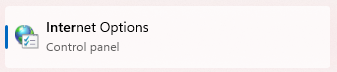
-
Go to the
Securitytab. - Click on
Trusted Sites, thenSites. - Untick
Require server verification (https:) for all sites in this zone. - Type the network location in the box labeled
Add this website to the zone. You may use:- the mapped drive letter (e.g.,
Z:), which will be converted to a UNC path. - the IP address of the server (e.g.,
192.168.123.456). - the server or website domain name (e.g.,
autory.autoactuary.com).
- the mapped drive letter (e.g.,
-
Click
Add, and thenClose.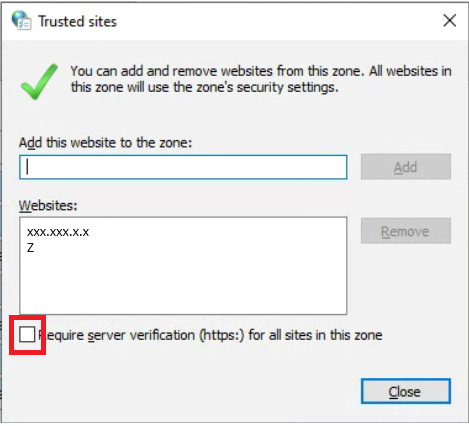
Unblocking individual downloaded files
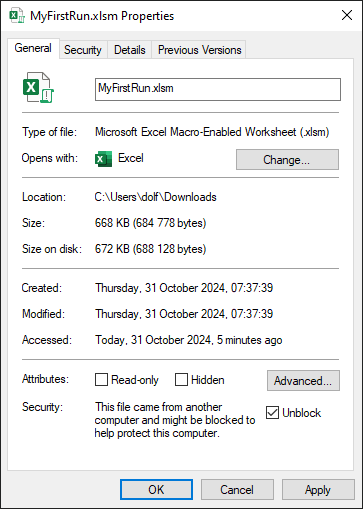
- Right-click on the file and select
Properties. -
In the
Generaltab, click onUnblockand thenApply.